CI/CD Documentation
Naming conventions for GitHub Actions:
workflow-*.yml: Reusable workflowsci-cd-*.yml: Workflows that are triggered by an eventdispatch-*.yml: Workflows that are dispatchable
CI/CD Flow
Section titled “CI/CD Flow”1. Development & Merge Process
Section titled “1. Development & Merge Process”-
Development
- Create feature branch from
main - Follow branch naming convention:
(feat|fix|docs|test|ci|chore|trivial)!?(\\(.*\\))?!?:.* - Create PR against
main - PR title must follow conventional commits format (validated by
ci-cd-pull-request-title.yml) - Get code review and approval
- Merge to
main
- Create feature branch from
-
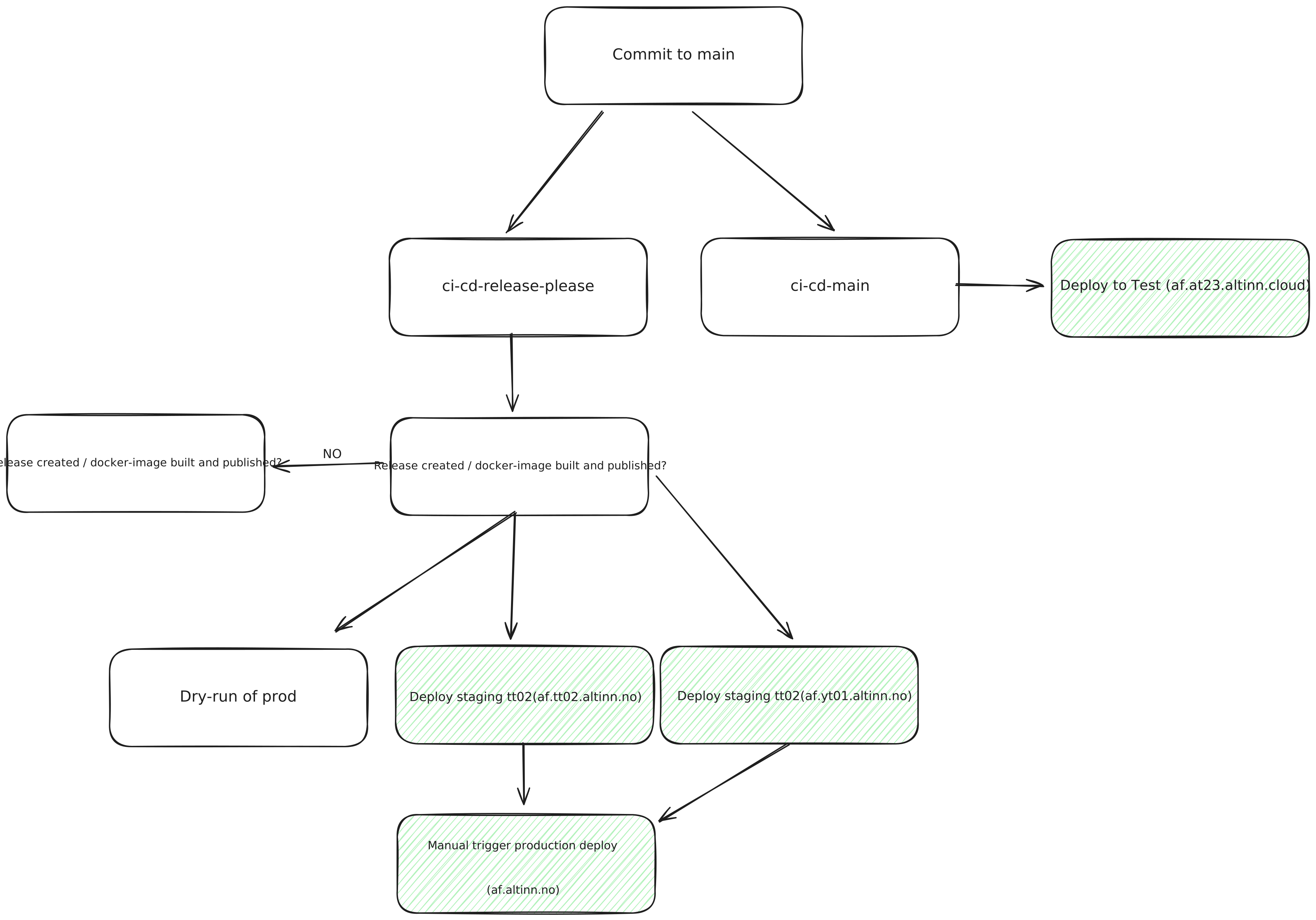
Main Branch Triggers
When code is merged tomain, two parallel workflows are triggered:a. CI/CD Main (
ci-cd-main.yml)- Automatically deploys to Test environment (
af.at23.altinn.cloud) - Runs full deployment including:
- Infrastructure if changed
- Applications if changed
- Runs tests
- Updates dependencies
- Updates the image tags for
at23in the manifests repository (see Manifests repository)
b. Release Please (
ci-cd-release-please.yml)- Checks if changes warrant a new release
- Either:
- Creates/updates release PR, or
- Builds and publishes Docker images if release is complete
- Automatically deploys to Test environment (
2. Release & Deployment Flow
Section titled “2. Release & Deployment Flow”When Release is Created/Published:
Section titled “When Release is Created/Published:”Three parallel workflows are triggered:
-
Production Dry Run (
ci-cd-prod-dry-run.yml)- Validates production deployment configuration
- No actual deployment
- Early warning for potential production issues
-
Staging Deployment (
ci-cd-staging.yml)- Deploys to staging (tt02) environment
- Full deployment including:
- Infrastructure updates
- Application deployment
- Database migrations
- SDK publishing
- End-to-end testing
-
YT01 Deployment (
ci-cd-yt01.yml)- Deploys to YT01 environment
- Performance testing environment
- Full deployment similar to staging
Production Deployment
Section titled “Production Deployment”- Manual Trigger Required (
ci-cd-prod.yml) - Requires specific version input
- Only moves forward: fails if the version is older than the one in production. Use Deploy Apps (Manual) to roll back, see Rollback
- Full deployment process:
- Version verification
- Infrastructure deployment
- Application deployment
- Node logger publishing
- Version tracking updates
3. Environment Flow
Section titled “3. Environment Flow”Development → Main Branch → Test → [YT01 + Staging] → Production ↑ ↑ ↑ Auto deploy Auto deploy Manual deploy on merge on release with version4. Environment Purposes
Section titled “4. Environment Purposes”- Test: Automatic deployment target for all changes merged to main
- YT01: Performance test environment, automatically updated with releases
- Staging (tt02): Pre-production verification, automatically updated with releases
- Production: Production environment, requires manual deployment trigger
5. Manual Control Options
Section titled “5. Manual Control Options”Available manual workflows for all environments:
dispatch-deploy-infrastructure.yml(Deploy Infrastructure (Manual)): Infrastructure deploymentdispatch-deploy-apps.yml(Deploy Apps (Manual)): Application deployment
Using dispatch-deploy-apps.yml
Section titled “Using dispatch-deploy-apps.yml”The dispatch-deploy-apps.yml workflow is responsible for deploying applications. To trigger this workflow:
- Navigate to the Actions tab in the GitHub repository.
- Select the
Deploy Apps (Manual)workflow. - Click on “Run workflow”.
- Fill in the required inputs:
- environment: Choose the target environment (
test,yt01,staging, orprod). - version: Specify the version to deploy. Could be git tag or a docker-tag published in packages.
- runMigration (optional): Indicate whether to run database migrations (
trueorfalse).
- environment: Choose the target environment (
This workflow will handle the deployment of applications based on the specified parameters, ensuring that the correct version is deployed to the chosen environment.
The image comes from version, but the Bicep templates come from the branch or tag selected under “Use workflow from”. Select the tag v<version> there if the templates must match the version you deploy. This workflow does not update the manifests repository.
Using dispatch-deploy-infrastructure.yml
Section titled “Using dispatch-deploy-infrastructure.yml”The dispatch-deploy-infrastructure.yml workflow is used for deploying infrastructure components. To use this workflow:
- Go to the Actions tab in the GitHub repository.
- Select the
Deploy Infrastructure (Manual)workflow. - Click on “Run workflow”.
- Provide the necessary inputs:
- environment: Select the environment you wish to deploy to (
test,yt01,staging, orprod). - version: Enter the version to deploy, which should correspond to a git tag. (e.g.,
1.23.4).
- environment: Select the environment you wish to deploy to (
This workflow facilitates the deployment of infrastructure to the specified environment, using the version details provided.
Manifests repository
Section titled “Manifests repository”Besides deploying to Azure Container Apps, the event-driven pipelines (ci-cd-main.yml → at23, ci-cd-staging.yml → tt02, ci-cd-yt01.yml → yt01 and ci-cd-prod.yml → prod) send an update_all_image_tags event to altinn/dialogporten-frontend-manifests with the deployed image tag (workflow-dispatch-update-manifests.yml). The event is only sent when the pipeline detects application changes. The manual workflows above do not send it.
For rolling back a release, see Rollback.
6. Version Management
Section titled “6. Version Management”- Release-please manages versioning based on conventional commits
- Versions are tracked in GitHub environment variables
- Separate tracking for infrastructure and applications
- Docker images tagged with release versions
- SDK and schema packages versioned with releases
Release Please is used to create releases, generate changelog and bumping version numbers.
CHANGELOG.md and version.txt are automatically updated and should not be changed manually.
7. Deployment Lag Monitoring
Section titled “7. Deployment Lag Monitoring”To ensure timely production deployments and maintain deployment cadence, an automated deployment lag monitoring system tracks when production deployments are falling behind staging deployments.
How It Works
Section titled “How It Works”- Automatic Monitoring: Runs daily at 9:00 AM UTC (11:00 AM CET)
- Manual Trigger: Can be triggered manually via GitHub Actions
- Slack Notifications: Sends alerts when production is significantly behind staging
Notification Triggers
Section titled “Notification Triggers”A Slack notification is sent when any of these conditions are met:
- More than 2 days since last production deployment AND more than 1 release behind
- More than 7 days since last production deployment (regardless of release count)
- More than 5 releases behind (regardless of time)
Severity Levels
Section titled “Severity Levels”- 🟢 LOW: < 7 days AND < 5 releases behind
- 🟡 MEDIUM: 7-14 days OR 5-10 releases behind
- 🔴 HIGH: > 14 days OR > 10 releases behind
Notification Details
Section titled “Notification Details”Slack notifications include:
- Current staging and production versions
- Number of releases production is behind
- Days since last production deployment
- Recent commits not yet in production
- Quick action buttons for viewing differences and deploying
For detailed configuration and customization options, see Deployment Lag Monitoring Documentation.
8. Visual Workflow
Section titled “8. Visual Workflow”